How to Install Claude Code Mods
Updated
This guide covers how to install Claude Code mods in each of the three ways Claude Code supports: one line inside a running session, two commands from your shell, or a temporary load from a local folder. The examples use the ClaudeMods marketplace (rotbit/claudemods-marketplace) and the cm-git-branch mod; swap in any mod's name.
Mods are plugins, so the commands are the plugin commands you may already know. Every mod page on this site has an install block that fills in the right names for you.
What do I need before installing a mod?
Check your version first:
claude --versionYou need Claude Code 2.1.287 or later in the terminal. The desktop app runs mods from 2.1.286. If you are behind, update Claude Code before going further; older versions do not run mods.
If your company manages Claude Code, an administrator may have limited mods to an approved list. If a mod will not load at work, ask whoever manages your settings.
Option 1: install inside Claude Code in one line
From any session, type:
/plugin install cm-git-branch --marketplace rotbit/claudemods-marketplaceGive the plugin name on its own, without an @ suffix. Claude Code adds the marketplace if it does not know it yet (asking you to confirm first), installs the mod and loads it into the current session. This form needs Claude Code 2.1.275 or later, which any mod-capable version already is.
Note that /plugin install rotbit/claudemods-marketplace alone does not work: without --marketplace, the argument has to be plugin@marketplace, and you get a "marketplace not found" error.
Option 2: install from your shell
Add the marketplace once, then install as many mods from it as you want:
claude plugin marketplace add rotbit/claudemods-marketplace
claude plugin install cm-git-branch@claudemods
The text after @ is the marketplace's name from its marketplace.json (claudemods), not the repository name. The success message after marketplace add tells you the name to use.
Both commands write to your user settings by default, so the mod is available in every project. Use --scope project to share it with a repository, or --scope local to keep it to yourself in one project:
claude plugin install cm-git-branch@claudemods --scope projectSessions that were already open do not see the new mod until you run this inside them:
/reload-pluginsIf you would rather click, /plugin install cm-git-branch@claudemods inside a session opens the mod's detail view in the plugin menu, where you choose the scope.
Option 3: try a mod without installing it
To try a mod from a local folder, for example a clone of its repository or one you are writing, load it for a single session:
claude --plugin-dir ./cm-git-branchNothing is written to your settings. The mod gets the id cm-git-branch@inline and is gone when you quit. You can pass --plugin-dir more than once, and saving a change to the hooks module reloads it without a restart. To confirm what loaded, run:
claude --plugin-dir ./cm-git-branch plugin listThe output has a "Session-only plugins" section with the mod's version and a loaded status. This is also the safest way to review a mod: run claude plugin validate ./cm-git-branch first and read its hooks: and calls: lines.
How do I check that a mod is running?
Open /plugin. Below the tabs, a dim line such as 1 mod active · cm-git-branch lists the mods that loaded. From the shell, claude plugin list shows installed plugins and whether each one is enabled; add --json for scripts.
If the mod is listed but you see nothing, check where you are running it. Mods draw in the terminal and the desktop Code tab only. In the VS Code chat panel or with claude -p, hooks run but there is no UI.
How do I configure a mod?
Most mods declare options with defaults. Right after installing, Claude Code may print a line saying some userConfig options are not yet set. That is expected; the defaults apply.
To change an option, open /config in a session and find the mod's rows, or use /plugin configure. The mod reloads with the new values. From the shell, you can set options at install time:
claude plugin install cm-git-branch@claudemods --config hideWhenClean=trueor later, by piping a JSON object of string values:
echo '{"intervalMs": "5000"}' | claude plugin configure cm-git-branch --values-stdinOptions you leave out keep their current values. Running claude plugin configure cm-git-branch without the flag prints every option and which ones are unset. Each mod page lists its options in a table under "Customize it".
How do I update, disable or uninstall a mod?
Update to the latest version from the marketplace:
claude plugin update cm-git-branch@claudemodsThe new version loads in your next session, or immediately after /reload-plugins.
Turn a mod off without removing it, and back on:
claude plugin disable cm-git-branch
claude plugin enable cm-git-branch
Inside a session, /plugin disable cm-git-branch does the same. Add -s project (or user, local) when the mod was installed at a scope other than user.
Remove it completely:
claude plugin uninstall cm-git-branchPass --keep-data to keep the mod's data directory, or --prune to also remove dependencies that were installed automatically and are no longer needed. The cached copy is cleaned up later; claude plugin prune does it now.
To switch every mod off for one session, start Claude Code with claude --safe-mode. To keep them all off, set "disableAllHooks": true in your settings.
Troubleshooting a mod that will not load
Work through these in order:
- Version.
claude --versionmust be 2.1.287 or later. - Reload. After a shell install or update, run
/reload-pluginsor start a new session. - Enabled. The mod must be enabled in the Installed tab of
/plugin. Disabled mods are installed but not loaded. - Name.
claude plugin installneedsplugin@marketplace-name. Runclaude plugin marketplace listto see the names you have added. - Surface. No UI in VS Code chat,
claude -por the Agent SDK is expected behaviour. - Policy. Managed settings can restrict mods to an approved list or block
--plugin-dir. - Conflicts. Two mods writing to the same place, such as the status line, can hide each other. Disable one at a time to find out.
If a mod still misbehaves, check its page for known issues, or report it with your Claude Code version and the output of claude plugin validate on the mod's folder. The full command reference is in the plugin CLI docs. New to mods? Start with what Claude Code mods are, then pick one from the directory.
FAQ
- Do I need to restart Claude Code after installing a mod?
- Not if you install with /plugin install inside the session. After installing from the shell, run /reload-plugins in any session that was already open.
- Why does /plugin install with a GitHub path fail?
- /plugin install on its own expects plugin@marketplace. Passing owner/repo gives a marketplace not found error. Add --marketplace owner/repo after the plugin name, or add the marketplace first.
- The installer says userConfig options are not yet set. Is something wrong?
- No. The message appears even when every option has a default, and the defaults are used. Configure the mod only if you want different values.
- Can I install a mod for one project only?
- Yes. Add --scope project to claude plugin install. The setting goes into the project's shared settings, so everyone who opens the repository gets it.
- How do I remove a mod and its data?
- Run claude plugin uninstall with the plugin name. Its stored data is removed too unless you pass --keep-data.
# Mods mentioned in this guide
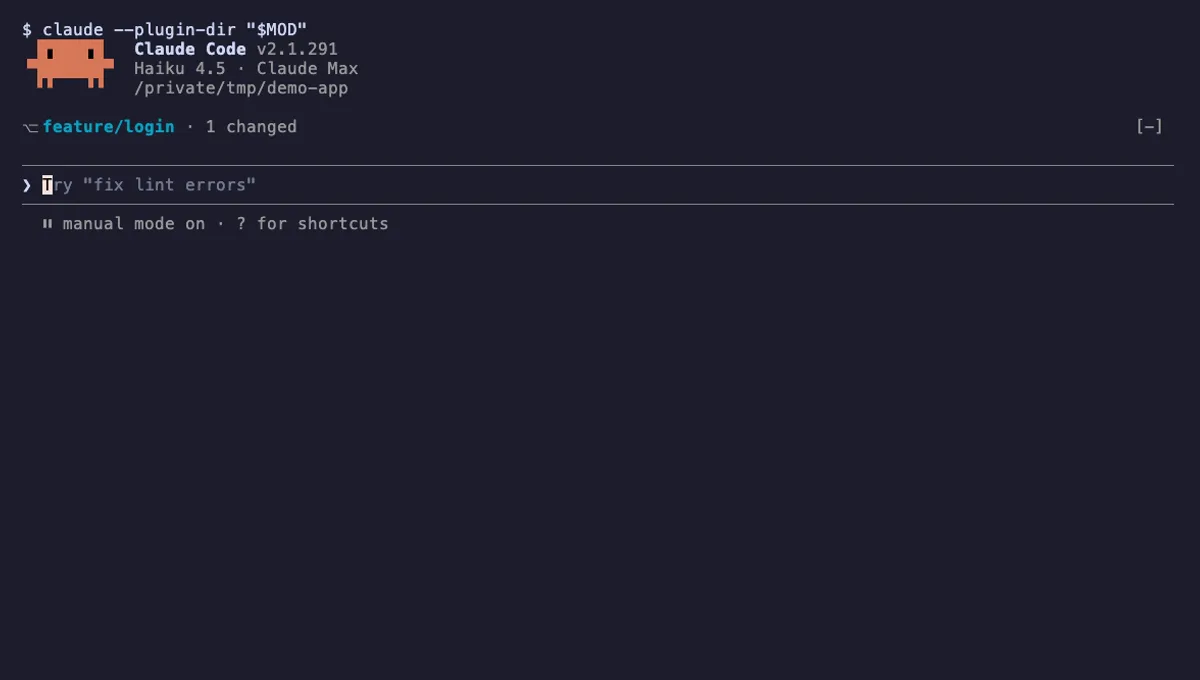
Git Branch Above Prompt
Shows your git branch, changed-file count and ahead/behind status in a one-line band above the Claude Code prompt.
- above-prompt
- Runs commands
- Intercepts tool calls
- Changes the UI
tested with v2.1.291
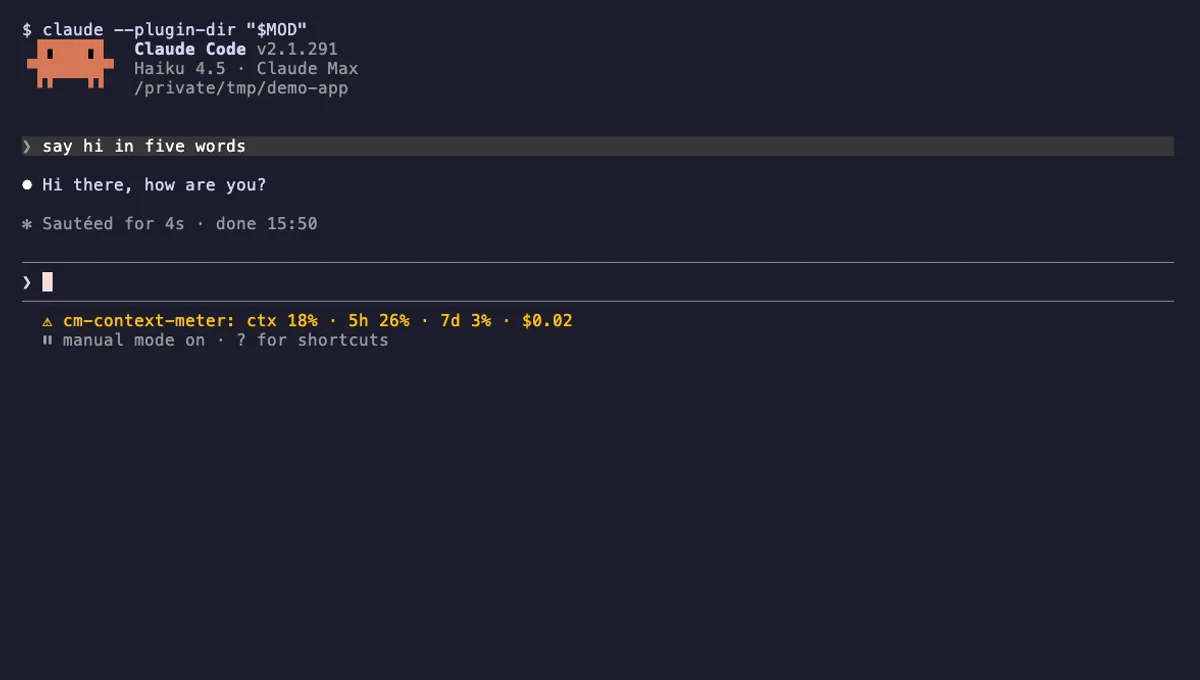
Context Meter
Context-window fill, 5-hour and 7-day plan usage and session cost in the status line, plus a warning near the limit.
- status
- toast
- Changes the UI
tested with v2.1.291
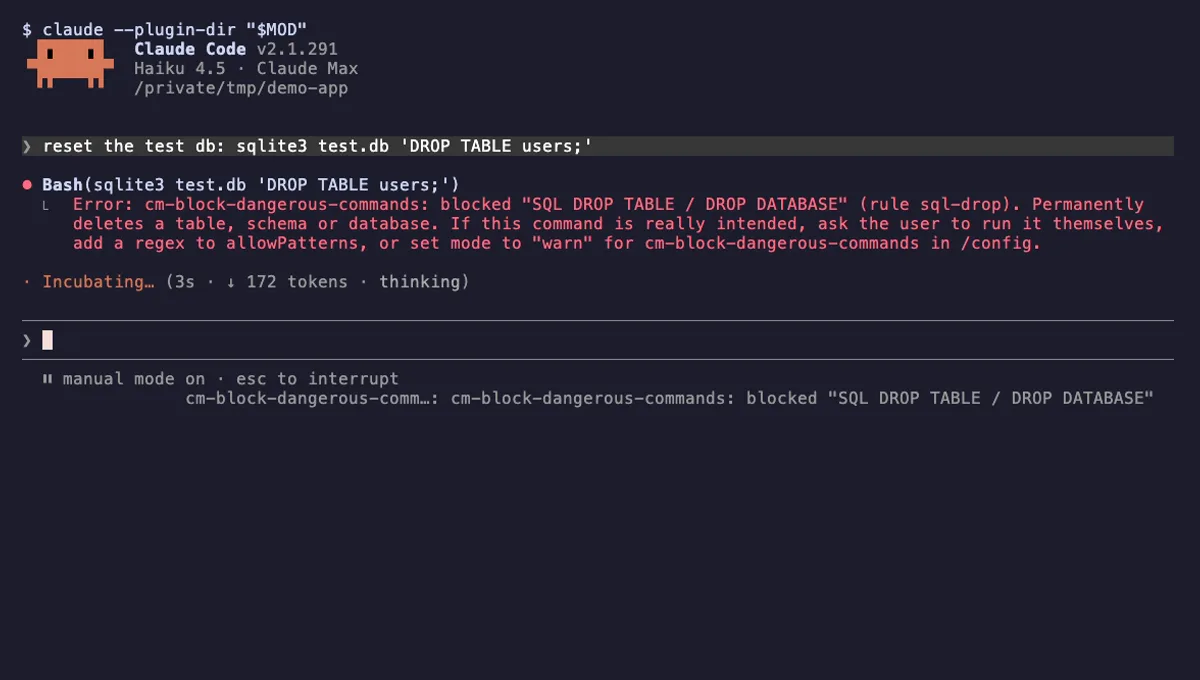
Block Dangerous Commands
Refuses rm -rf /, force-push to main, DROP TABLE, curl | sh and other destructive Bash commands before they run.
- toast
- Intercepts tool calls
- Changes the UI
tested with v2.1.291
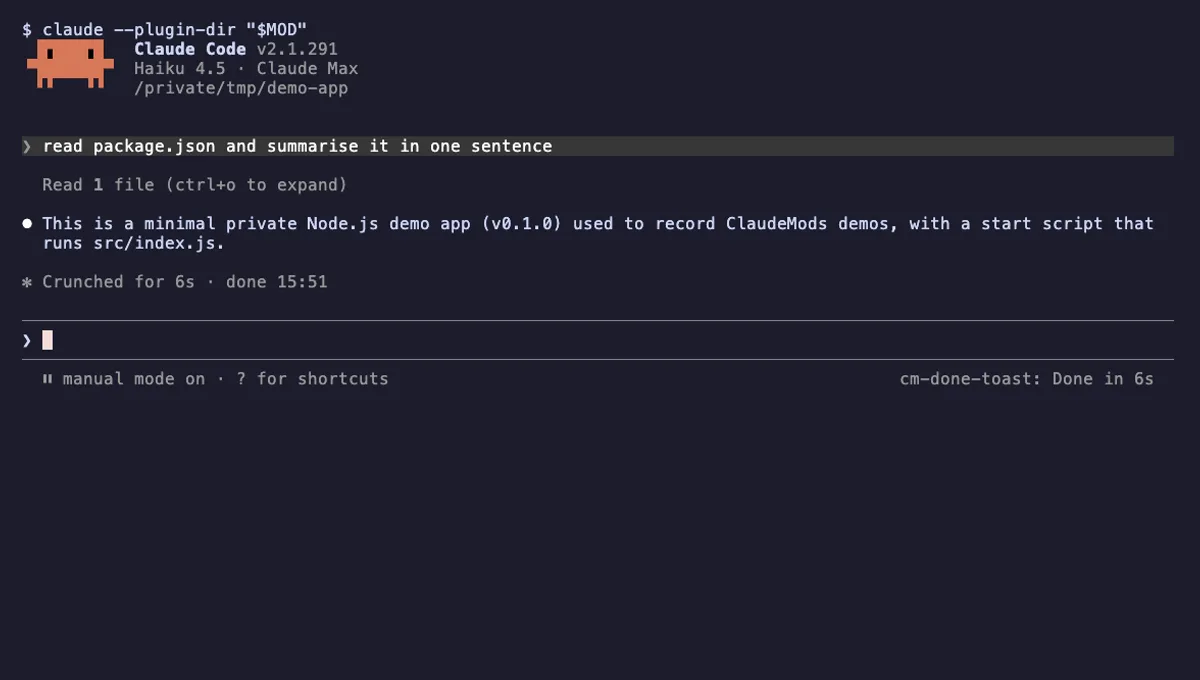
Done Toast
A "Done in 2m 14s" toast and a short chime when a long Claude turn finishes, plus an optional desktop notification.
- toast
- Runs commands
- Changes the UI
- Plays sound
tested with v2.1.291
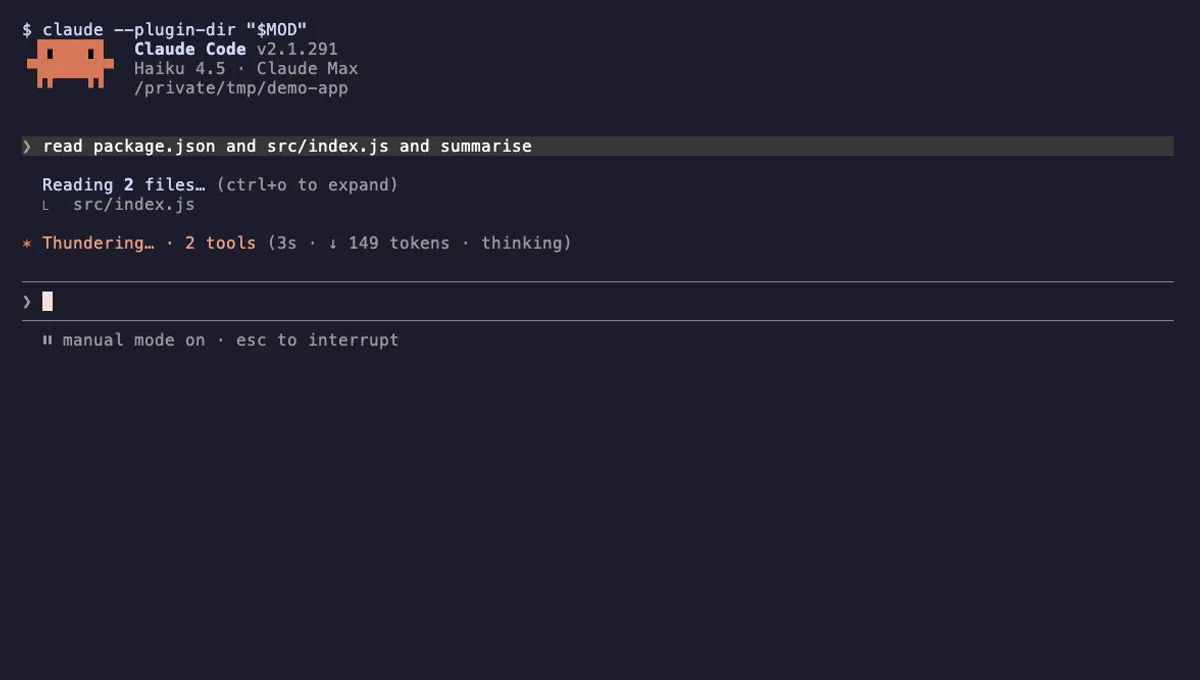
Tool Call Counter
Counts Claude's tool calls per turn and session, shows the count by the spinner, and adds /tally for a breakdown.
- spinner
- transcript
- status
- Intercepts tool calls
- Changes the UI
- Adds commands/tools
tested with v2.1.291